Calgary Computer Services | IT Consulatant | Dental Clinics | Dentists | Insurance Brokers
  • Home
  • Industries
    • Dental Clinics
    • Insurance Brokers
    • Hotels
  • Services
  • Download

How to find out Office 2010 and 2013 product key

14/6/2017

3 Comments

 
  1. Open a command prompt. For instance via:
    • Start-> All Programs-> Accessories-> Command Prompt
    • Windows XP 
      Start-> Run: cmd
    • Windows Vista, Windows 7 and Windows 8
      Start-> type: cmd
  2. In the command prompt, type the following:
    • Office 2010 (32-bit) on a 32-bit version of Windows 
      cscript "C:\Program Files\Microsoft Office\Office14\OSPP.VBS" /dstatus
    • Office 2010 (32-bit) on a 64-bit version of Windows 
      cscript "C:\Program Files (x86)\Microsoft Office\Office14\OSPP.VBS" /dstatus
    • Office 2010 (64-bit) on a 64-bit version of Windows 
      cscript "C:\Program Files\Microsoft Office\Office14\OSPP.VBS" /dstatus
    • Office 2013 (32-bit) on a 32-bit version of Windows 
      cscript "C:\Program Files\Microsoft Office\Office15\OSPP.VBS" /dstatus
    • Office 2013 (32-bit) on a 64-bit version of Windows 
      cscript "C:\Program Files (x86)\Microsoft Office\Office15\OSPP.VBS" /dstatus
    • Office 2013 (64-bit) on a 64-bit version of Windows 
      cscript "C:\Program Files\Microsoft Office\Office15\OSPP.VBS" /dstatus
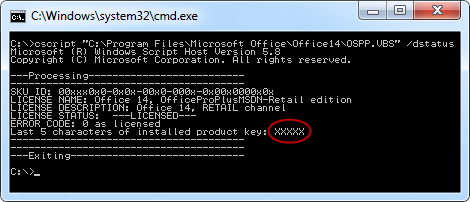
  3. You should now get a screen with some license details such as the license name, type and the last 5 characters of the Product Key.
Picture
3 Comments

    Archives

    January 2024
    September 2023
    October 2022
    January 2022
    August 2020
    June 2017
    December 2016
    November 2016
    November 2015
    September 2015
    October 2014
    February 2014

    Categories

    All
    Antivirus
    Malwarebytes
    Networking

    RSS Feed

6 Varsity Estates Close NW
Calgary, AB
​T3B 5J2
Tel: (403) 462-9277
Copyright© 2004-2021 SysReady Ltd
  • Home
  • Industries
    • Dental Clinics
    • Insurance Brokers
    • Hotels
  • Services
  • Download